The plan for the holidays was clear: stay away from the PC.
I almost made it.
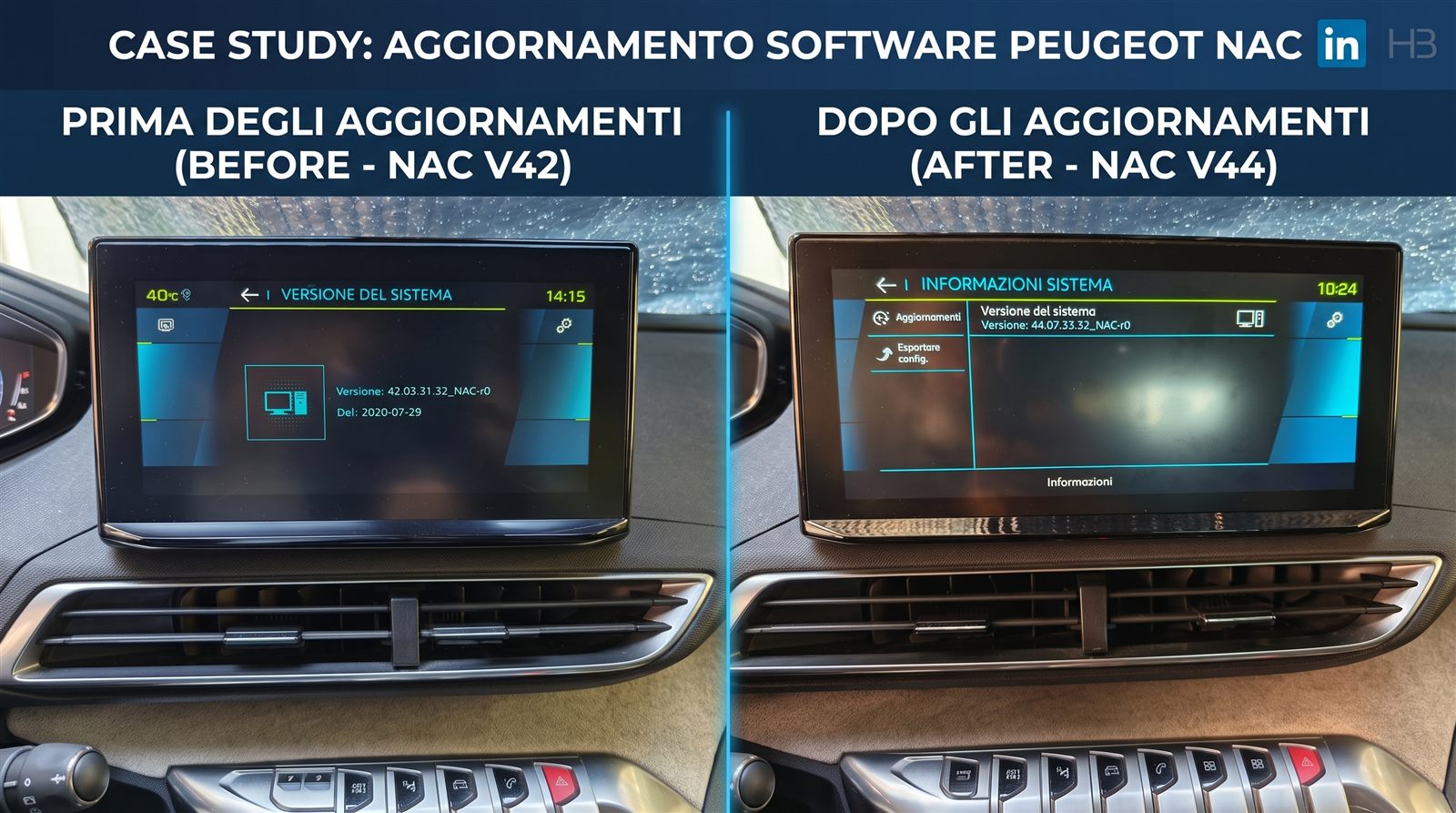
Then, right before leaving, I checked the infotainment firmware version on the used Peugeot 3008 I bought in July. Whether it was on the latest patch, obviously.
Professional deformation.
It wasn't. The previous owner had never updated either the maps or the firmware.
The maps I fixed in half an hour, following the official Peugeot instructions to the letter.
The firmware kept me busy for hours, spread across several evenings, before I found the real cause.
This is the guide I wish I had found when I started. It applies to any Stellantis vehicle (Peugeot, Citroën, DS, Opel) with a NAC Wave 4 system.
One error, four possible culprits
The official Peugeot/Citroën/DS/Opel Update tool shows a single message for at least four completely different problems: "Version incompatible with Hardware".
- Missing license: the package was downloaded from a source other than the official tool, no
licensefolder inside it. - Expired revocation lists (CRL): the package is old and nobody ever refreshed the CRLs inside it.
- Unofficial file: downloaded from a third-party mirror with content different from the original, file size differs from what's declared.
- Server-side bug: a corrupted file uploaded by mistake to the public CDN, size slightly different from the good server.
If you work in software you'll recognize the pattern: when one message has to cover four completely different cases, it's usually not a design flaw. It's a feature 😂
On screen the message is always identical. That's what pushes most people to retry the exact same thing, convinced they did something wrong themselves. I lost more time that way than on actually solving the problem.
What you need before starting
- A USB drive of at least 32 GB, formatted FAT32 (packages weigh 4-7 GB).
- A Windows PC with a stable connection.
- PowerShell, already included in Windows, no extra software needed.
- The car accessible and running for 30-45 minutes.
- The official Peugeot/Citroën/DS/Opel Update tool installed, just to retrieve one technical value.
The official tool is fine for maps. For firmware, at certain times it downloads a corrupted file from a different server than the good one. I still use it, just for one piece of data: the actual download I do manually, from the right source.
Step 1: find your NAC's UIN
The VIN identifies the car. The UIN identifies the actual NAC unit: a 20-character hexadecimal code, different even if the NAC gets replaced.
- Format a USB drive as FAT32.
- Insert it into the car with the engine running.
- On the touchscreen: Settings, then System info, then System version.
- Select Export configuration or Export to USB.
- Connect the drive to your PC: you'll find
instkey_<UIN>.xmlandpackageslist_<UIN>.txt.
The code between instkey_ and .xml is your UIN.
Step 2: find the version to install and its UpdateID
Every firmware version has a number (example: 44.07.33.32_NAC-r0) and an 18-digit UpdateID. Two ways to find it: open the official tool with your VIN, or search the community-maintained version tables.
You don't need to install intermediate versions one by one. With a fresh license and fresh certificates, you can jump directly from your current version, even years old, to the latest available.
Step 3: download the firmware from the right source
This is where it matters most. The file must be downloaded directly from the official Stellantis server, not from the tool's public CDN (sometimes corrupted), and not from a third-party mirror.
curl.exe -L -C - --retry 20 --retry-delay 5 --retry-all-errors `
  -o "firmware.tar" `
  "https://majestic-web.mpsa.com/nas/eu/mjb00/NAC_EU/ovip-int-firmware-version/PSA_ovip-int-firmware-version_VERSION-WITH-DASHES_NAC-r0_NAC_EUR_WAVE4.tar"
If this returns 404, try the alternate path used for more recent versions:
curl.exe -L -C - --retry 20 --retry-delay 5 --retry-all-errors `
  -o "firmware.tar" `
  "https://majestic-web.mpsa.com/nas/eu/mjb00/PSA/mjbsu/PSA_ovip-int-firmware-version_VERSION-WITH-DASHES_NAC-r0_NAC_EUR_WAVE4.tar"
The -C - flag resumes the download from where it stopped: with 5-7 GB files, that happens, and it's not a problem.
Before moving on, always check the downloaded file size against what the server declares:
(Get-Item firmware.tar).LengthA difference of even a few thousand bytes means a broken file. Don't proceed, re-download.
Step 4: extract the archive and get the real UpdateID
tar -xf firmware.tarInside you'll find a SWL\<UpdateID>\ structure. That number is the exact UpdateID, use it instead of the one found online if it differs by even one digit.
Step 5: download the license
Firmware alone isn't enough: without a license generated specifically for your UIN and this exact version, the NAC refuses the installation.
curl.exe -L -o "license.key" `
  "https://majestic-web.mpsa.com/mjf00-web/rest/LicenseDownload?mediaVersion=UPDATE-ID&uin=YOUR-UIN"
Rename the downloaded file following exactly this pattern:
license_YOUR-UIN_UPDATE-ID.keyIf the file contains errorCode or looks like a readable error message, the license wasn't generated: wrong UIN or UpdateID.
Step 6: refresh the CRLs
Inside SWL\<UpdateID>\Certificates\ there are two .crl files, often dated to the release year of that firmware version. Over time they expire. I always replace them with fresh ones:
curl.exe -L -o "SWL\UPDATE-ID\Certificates\PSA-OVIP-CS-G1.crl" "http://pki.p3cs.com/PSA-OVIP-CS-G1.crl"
curl.exe -L -o "SWL\UPDATE-ID\Certificates\PSA-OVIP-G1.crl"    "http://pki.p3cs.com/PSA-OVIP-G1.crl"
No downside: even if the original CRLs were still valid, overwriting them with fresh ones breaks nothing. The kind of certainty you rarely get on a software project, and here they just hand it to you for free.
Step 7: build the USB with the exact structure
The NAC expects a precise folder structure at the root of the USB drive:
USB:\
  SWL\
    <UpdateID>\
      Certificates\   (with the fresh CRLs)
      Firmware\
      MediaHeader\
      HashList.ini
  license\
    license_<UIN>_<UpdateID>.key
The most common mistake: the license folder goes at the root of the USB drive, not inside SWL\<UpdateID>\. It's the detail that's easiest to miss, and on its own is enough to make everything fail with the exact same generic error.
Step 8: take the car offline, then install
- Turn off WiFi and hotspot on the car before inserting the USB drive.
- Start the engine.
- Insert the USB drive. The system should detect the update on its own, otherwise go to Settings, System info, System update.
- Wait 30-45 minutes without turning off the engine. One or more screen restarts are normal. Perfect time for a coffee, or to wonder why a combustion engine needs to stay running just to install a software update.
- Verify the displayed version matches exactly the one you installed.
If it still fails
- Same error with a freshly downloaded license: check that the UpdateID and UIN in the file name exactly match the ones used in the URL.
- Same error with CRLs already replaced: double check the
licensefolder is at the root of the USB, not insideSWL. - Same error even with perfect files and structure, car offline: probably an internal NAC issue, needs direct diagnosis at a workshop.
If you end up at a workshop after following these steps, bring your VIN, UIN, and the versions you tested: it proves this isn't a procedure problem, and the technician can go straight to hardware diagnosis.
Why I wrote all of this
This isn't my field. I don't work with cars, I don't know the NAC protocol, I'd never heard of a UIN or a CRL until this summer.
What I do know how to do is approach a problem the same way I approach a bug in production: isolate the causes one by one, verify instead of assume, and don't stop at the first failed attempt.
Building AI pipelines by day, reverse engineering a car's infotainment system by night. Not sure if that's concerning or just my normal.
The holidays away from the PC ended with PowerShell open in the garden. I've made peace with it.
I used Claude as a debugging partner to reconstruct the logic behind the error and organize the procedure. The result is here, free, for anyone stuck exactly where I was.
If you get stuck during the procedure, reach out.
Frequently asked questions
Why does the Peugeot Update tool say "Version incompatible with Hardware"?
The same message covers at least four different causes: a missing license (package without a license folder), expired CRL revocation lists inside the package, an unofficial file downloaded from a third-party mirror, or a corrupted file on the tool's public CDN. The on-screen message is identical in every case, so you have to rule out one cause at a time.
What is the NAC UIN and where do I find it?
The UIN is the 20-character hexadecimal code that identifies the NAC unit itself (unlike the VIN, which identifies the car). You get it by exporting the configuration to a FAT32 USB drive from Settings, System info, System version: in the file instkey_<UIN>.xml, the code between instkey_ and .xml is the UIN.
Do I need to install every intermediate NAC firmware version?
No. With a license generated for your UIN and the chosen version, plus fresh CRLs, you can jump directly from your current version, even years old, to the latest available.
Where does the license folder go on the USB drive?
At the root of the drive, next to the SWL folder, not inside SWL\<UpdateID>\. It is the most common mistake and on its own it is enough to make the update fail with the same generic message.
Does this procedure also work for Citroën, DS and Opel?
Yes. It applies to any Stellantis vehicle with the NAC Wave 4 infotainment system, so Peugeot, Citroën, DS and Opel.

Holti Bitri
CTO & AI Innovator, TIG Factory. Nearly 20 years in the Microsoft ecosystem, today between cloud architectures, AI pipelines and, apparently, second-hand infotainment systems. LinkedIn · holtibitri.com